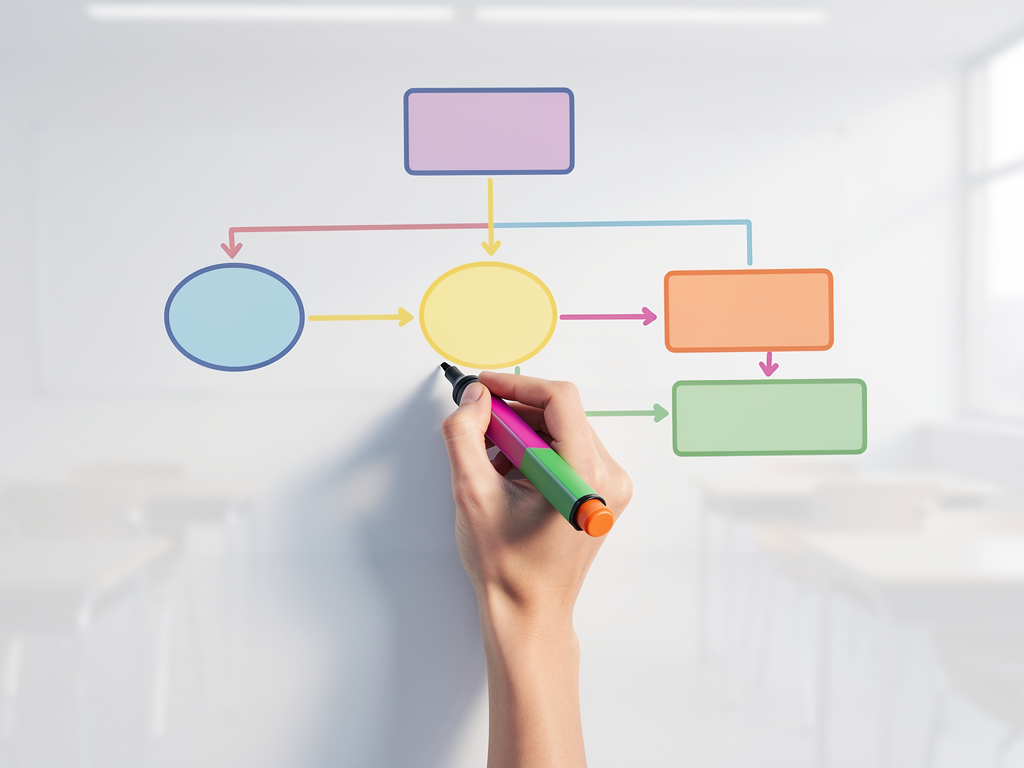
Why Whiteboard Videos Work Better for Teaching
Students remember 65% more information when they see visuals paired with narration than from text or narration alone. A whiteboard explainer video mimics what happens in a live classroom—a teacher drawing and explaining at the same time—but students can rewatch it, pause it, and share it. The hand-drawn aesthetic feels less polished than a corporate animation, which paradoxically makes it more trustworthy to learners; it signals "this is a real explanation, not marketing."
For educators, the payoff is concrete: fewer repeated explanations in office hours, better performance on assessments tied to the video topic, and students who can learn asynchronously (especially valuable for flipped classrooms or remote cohorts). A 5-minute whiteboard video on photosynthesis or the Pythagorean theorem costs far less to produce than hiring a videographer, and you can update it in weeks, not months.
What Makes a Whiteboard Video Effective in a Classroom Setting
How long should an educational whiteboard video be?
Keep it between 3 and 7 minutes for most K–12 and introductory college topics. Attention spans drop sharply after 8 minutes, especially for younger students. A 5-minute video on a single concept (e.g., "How photosynthesis works" or "Introduction to fractions") is the sweet spot—long enough to explain thoroughly, short enough that students watch it in one sitting without distraction.
For advanced or graduate-level material, 8–10 minutes is acceptable if the script is dense and the visuals change frequently. Shorter is almost always better: a 2-minute explainer on a specific sub-concept (e.g., "What is the Calvin cycle?") can be more useful than a 15-minute survey that tries to cover everything.
What should the script focus on?
Start with the core question your students actually ask. "Why do we need to know this?" or "How does this connect to what we learned last week?" Answer that in the first 20 seconds. Then break the concept into 3–5 logical steps, each one building on the last. Use plain language—avoid jargon unless you define it on screen as you say it.
Include one concrete example or real-world application per major step. For instance, if you're explaining Newton's second law (F = ma), don't just state the formula; show a car accelerating and connect it to the math. Students who see the why before the how retain both better.
End with a summary or a question that prompts students to apply what they learned. "Now, if a 2,000 kg car accelerates at 5 m/s², what force is acting on it?" turns the video into a teaching tool, not just a passive watch.
How do visuals help students understand?
The whiteboard style works because it unfolds at a human pace. Viewers see the drawing appear line by line, which forces their brain to process the information in sequence—the same way they'd absorb a live explanation. Color-coding (e.g., red for reactants, blue for products in a chemical equation) reduces cognitive load. Arrows and annotations guide the eye. Simple icons or stick figures are often more memorable than photorealistic images because they're less cluttered.
For abstract concepts (photosynthesis, supply and demand, the water cycle), a whiteboard animation can show the process unfolding—molecules moving, energy flowing, cause-and-effect chains appearing step by step. That's hard to do with a static diagram or even a live teacher drawing in real time, because the video can be edited for perfect pacing and clarity.
How to Create an Educational Whiteboard Video
What's the fastest way to turn a lesson into a video?
Write or paste your script into an AI video generator, and let it handle the drawing, narration, and timing. This is the difference between a 2-hour production process and a 20-minute one.
Here's the workflow:
- Write a tight script (3–5 minutes = 450–750 words). Read it aloud to catch awkward phrasing.
- Upload or paste the script into a tool like Ankon AI. The AI reads the script, identifies key concepts, and generates a storyboard of scenes with hand-drawn visuals and narration.
- Review and tweak. Most tools let you edit the script, swap out scenes, or adjust timing before rendering.
- Render and download. You get a finished MP4 with captions, ready to upload to your LMS or YouTube.
With Ankon AI, a 5-minute educational video costs 5 credits (the base rate is 1 credit per finished minute, with a 2-credit minimum). The Starter plan includes 15 credits per month—enough for three 5-minute videos. If you want smoother transitions and richer visuals, the Enhance mode doubles the scenes (and the credit cost), but for most classroom explainers, the base render is clear and professional enough.
Can you use an existing lesson plan or textbook chapter?
Yes. If you have a PDF of a textbook section or a lesson plan document, you can upload it directly. The AI extracts the key ideas and converts them into a script and storyboard. This is faster than rewriting from scratch, though you may still want to edit for clarity or to match your teaching voice.
For a lesson plan that's already in your own words, copy and paste it into the tool. The AI will reorganize it into a more script-like format, but the core content stays yours.
What if you want to narrate it yourself instead of using AI voiceover?
Most AI video tools, including Ankon AI, let you record your own voiceover or upload an audio file. This is valuable if you want students to hear your voice (which builds rapport) or if you're teaching in a language where AI narration isn't available yet. You record yourself reading the script, sync it to the video, and the tool adjusts the visuals to match your pacing.
Ankon AI supports 13 languages via AI narration. If you record a 10-second voice sample once, the tool can clone your voice and narrate in any of those 13 languages—useful if you teach multilingual cohorts or want to create versions for different language learners.
Real Classroom Use Cases
Flipped classroom: Video before class, discussion in class
Assign the whiteboard video as homework. Students watch it, take notes, and come to class with questions. Class time becomes a discussion and problem-solving session instead of a lecture. You spend less time explaining and more time coaching students through application. Retention improves because students have already encountered the concept once (from the video) and now they're engaging with it actively.
Asynchronous or remote learning
Students in different time zones or unable to attend live sessions watch the video on their own schedule. They can rewatch confusing sections without raising their hand. You can link the video in your LMS, embed it in a lesson module, or share it on YouTube. Captions (which Ankon AI includes automatically) help students who are deaf or hard of hearing, and they also help non-native speakers.
Makeup or remedial review
A student missed class or didn't grasp a concept the first time. Instead of re-explaining one-on-one, you send them the video. It's consistent (same explanation every time), and it frees you to focus on students who need deeper support.
Supplementary material for a textbook chapter
Your textbook explains the water cycle in 3 pages of dense text. A 4-minute whiteboard video shows the cycle in motion—evaporation, condensation, precipitation, collection—with narration that matches the textbook but is easier to follow. Students read the chapter, watch the video, and then tackle the practice problems. The combination of text + animation + narration is more effective than text alone.
Practical Tips for Educational Whiteboard Videos
Keep the visual style consistent
Use the same color palette, font, and icon style throughout. If you're using Ankon AI, the tool applies a consistent style automatically, so you don't have to worry about mismatched graphics. Consistency reduces cognitive load—students focus on the content, not on why the drawing style suddenly changed.
Sync narration pacing to visuals
The narration should match the drawing speed. If the AI is drawing a diagram while you're explaining it, the timing should feel natural—not rushed or dragging. Most tools let you adjust the render speed or edit the script to fix pacing issues. A 5-minute script should take roughly 5 minutes to narrate (accounting for pauses and emphasis).
Add captions and make them readable
Captions serve students who are deaf or hard of hearing, students in noisy environments, and non-native speakers. They also boost retention—students who read and hear the same information remember it better. Ankon AI auto-generates captions and exports them as SRT files, so you can edit them if needed and use them across platforms.
Test with a small group first
Show the video to a few students or colleagues before rolling it out to the whole class. Ask: "Did you understand the main idea?" "What was confusing?" "What would help?" One round of feedback often reveals pacing issues, unclear explanations, or missing context that you can fix in 15 minutes.
Update videos when the content changes
If you correct a mistake or want to add new information, re-render the video instead of creating a new one. With an AI tool, editing is fast—change the script, re-render, and you're done. This keeps your course materials current without duplicating effort.
Cost and Workflow for Educators
A typical educator might create 2–4 whiteboard videos per month (one per major topic or unit). At 5 minutes each, that's 10–20 credits. The Starter plan (15 credits/month, $29/mo) covers this easily. If you teach multiple sections or want to include Enhance mode (which doubles scenes for smoother visuals), the Plus plan (40 credits/month, $69/mo) gives you room to experiment.
Annual billing saves about 20% off the monthly price, so a Starter plan on annual is roughly $280/year instead of $348—a small investment for a tool that saves hours of production time and improves student outcomes.
Failed renders are refunded automatically, so you don't lose credits if something goes wrong. Fast render is free, so there's no penalty for speed.
The Verdict
Whiteboard explainer videos are one of the highest-ROI teaching tools available. They're faster to produce than live lectures, more engaging than slides, and reusable across semesters. Students retain more, ask fewer redundant questions, and can learn at their own pace. For educators who want to scale their teaching without burning out, a whiteboard video generator removes the production friction—you write the script, the AI handles the rest, and you get a polished, professional video in under an hour.
If you're teaching a concept that benefits from visual explanation (and most do), a whiteboard video should be in your toolkit. Start with Ankon AI—you get 2 free credits to test it out, no card required.